
The Builder is a pure Java application and can be used in all Microsoft® Windows®, Linux, and UNIX environments. The Builder is fully integrated into MagicDraw™. It enables you to compile UML® diagrams into executable services.
The Builder features a modular design: the Model Compiler for compiling XMI® files and the SOAP Test Tool and Interactive Debugger for testing services.
The notion of a "service" is used in the SOA (Service Oriented Architecture ) sense: "A service is a function that is well defined, self-contained, and does not depend on the state of other services. However, most frequently it depends on interfaces of other services."
Nowadays, the term "service " is often used synonymously with web service. Though web services are an important type of services, there are also other kinds of services such as SAP RFC services or timer services.
Preconditions
You have access to a licensed Builder installation. In order to work productively with the Builder, you also need a Bridge installation to accompany the Builder. Refer to the Integration (Bridge) User's Guide for more information on this product.
The following screenshots were taken from a Microsoft Windows platform using MagicDraw version 18. The Builder is embedded in MagicDraw and cannot be run stand-alone.
Starting BUILDER for MagicDraw the Very First Time
To open a Builder project, you will need MagicDraw with Builder for MagicDraw. These two products are perfectly tuned and synchronized to work together.
After the Builder has been installed, you can open MagicDraw by using the shortcut on the desktop.
As an alternative, you can also open it from the Windows Start Menu (MagicDraw UML).

The MagicDraw window will open as shown in the picture below.
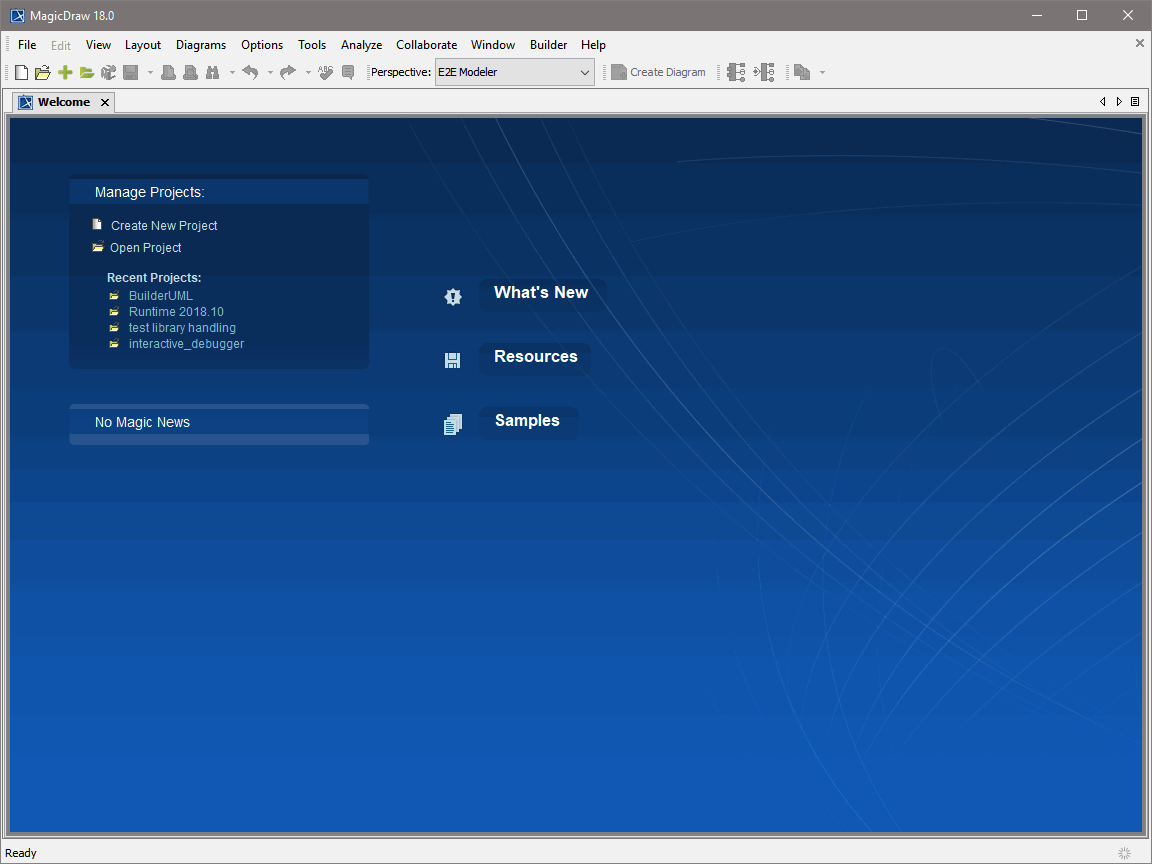
From this point, you can use MagicDraw with the Builder without any restrictions. The Builder plugs itself into the MagicDraw menu bar like show below.
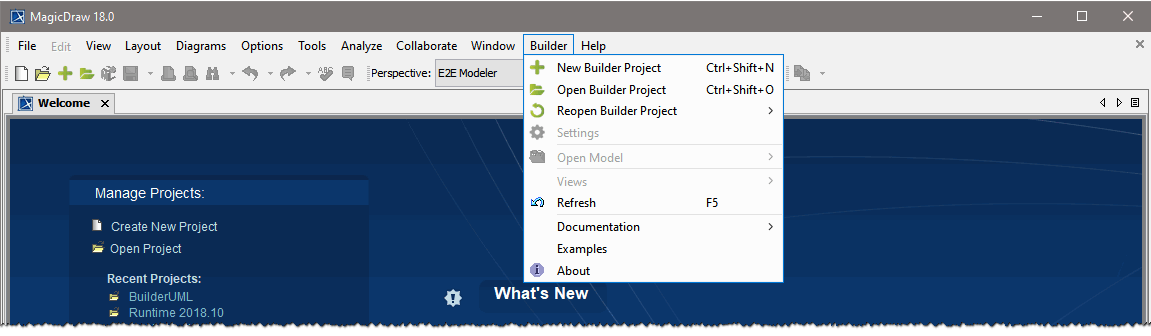
To make first steps with Builder, follow the instructions below.
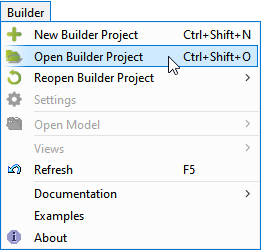
Click the menu item Builder > Open Builder Project:
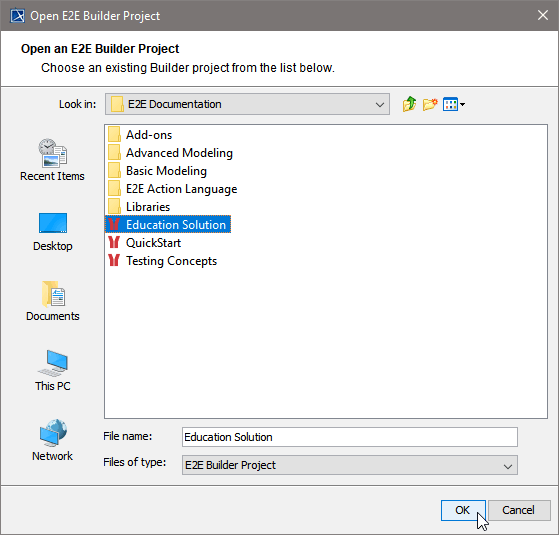
If you have chosen the default settings while installing the Builder, you will find the Builder project Education in C:\E2E Documentation. Builder projects are directories marked with an 
In the same folder, you will also find further examples. To open the Education project select it and click OK:
Applying the Bridge Developer's Perspective
MagicDraw knows the concept of perspectives to satisfy the needs of different software development process roles.
Perspectives allow:
-
The selection of a predefined MagicDraw configuration and features according to your software development process role.
-
Customizing a set of predefined features and configuration based on user needs.
-
Finding features faster, because there are less of them.
We created a specific perspective to serve the needs of Bridge developers. MagicDraw features are reduced to the ones needed for service modeling.
From the Options menu, choose Perspectives > Perspectives. Select the E2E Modeler perspective from the dialog and click Apply.
Related Content
Related Documentation