Bridge cannot be started in the browser
Problem 1
The Windows service (E2E Console) respectively the E2E Console background daemon has not been started yet (see section Bridge Web Page cannot be displayed).
Solution (Windows)
-
Open the Windows Services tool and start the Bridge service E2E Console manually, respectively start the Bridge background daemon E2E Console.
-
Change the status of the Bridge service to automatic.
Solution (Linux)
The E2E Console background daemon does not start.
On UNIX systems, the Bridge system user needs a shell to start the E2E Console background daemon. Change the Bridge system user as to have a shell.
Problem 2
You are using current versions of Chrome, Firefox, or Internet Explorer with a Bridge version 6.0.52.5 or lower and get one of the following error messages:
-
Chrome: "Your connection is not private."
-
Firefox: "Secure connection failed."
-
Internet Explorer: "This page can't be displayed."
Solution
-
In Firefox, you have the possibility to enable the weak options:
-
Enter about:config in the Firefox location bar.
-
Accept the next security warning.
-
Enter security.ssl3.dhe_rsa_aes in the search field. You get two entries.
-
Change both entries with a double click to false. You do not have to restart Firefox.
-
Please note: This is a global option in Firefox and applies to all connections.
Problem 3
Your browser is not supported.
Solution
The Bridge supports the latest versions of the following browsers:
-
Google Chrome
-
Mozilla Firefox
-
Microsoft Edge
Additionally, Microsoft Internet Explorer 11 is still supported.
https://localhost:8080 does not open the Bridge
Problem
The proxy is not bypassed for localhost.
Solution
-
Mozilla, or Firefox browsers: Make sure that you have chosen Direct connect to the Internet or no proxy for: localhost in the browser settings.
-
Internet Explorer browsers: Make sure that no proxy is used for local addresses. Choose Bypass proxy server for local addresses in the browser settings.
-
Instead of localhost you can also write the IP address or the full computer name (see in the Windows system properties: right mouse click on My Computer, Properties). For instance https://e2ebridge.e2e.ch:8080.
Bridge cannot be started in the browser
Problem 1
The Bridge cannot be started in the browser resp. no security alert relating the installed default certificate has been displayed. The browser's security policy does not allow displaying the web site without a certificate whose certifying authority is trusted.
Solution
Check the browser's security or privacy settings.
Problem 2
The Bridge cannot be started in the browser resp. no security alert relating the installed default certificate has been displayed. If you are connecting the web site via a proxy or a firewall, the content may be filtered due to the default certificate whose certifying authority is not trusted.
Solution
Ask your network administrator to not filter content for the used Bridge URL.
Bridge Web page cannot be displayed
Problem
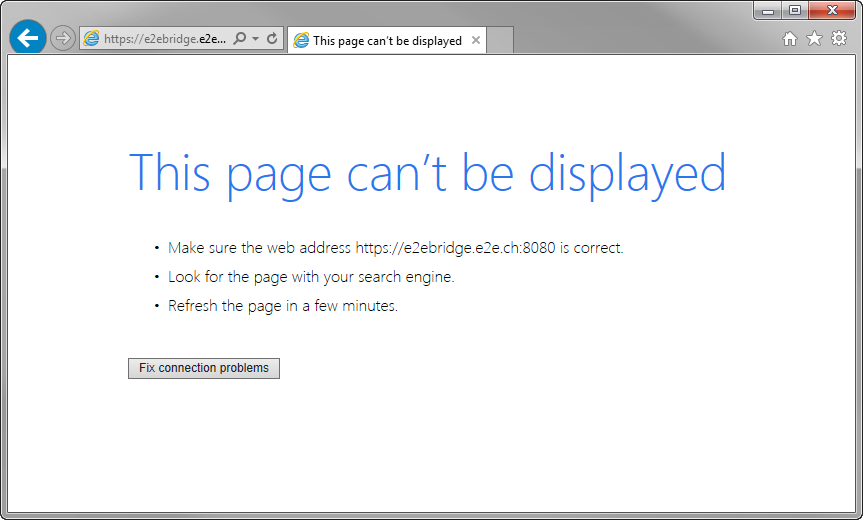
When you start the browser in order to open the Web-based user interface of the Bridge) and enter the URL https://localhost:8080 or https://<your host name>:8080, the following page is displayed:
Solution
Most likely the Windows / UNIX / AIX service E2E Console to run the Bridge has not been started.
If your system is mainly used to run the Bridge, we recommend to start-up the service automatically. This option can be set during installation of the Bridge or, using Windows, in the Services application (Startup Type: Automatic). Do not change the Logon as value, otherwise the Bridge might not start anymore due to missing or wrong permissions.
On Windows platforms, check the Windows service E2E Console. Navigate to the Windows services administration tool.
The service E2E Console must be started to run services on the Bridge.
|
On UNIX platforms you will find the shell script e2e_console in the directory /etc/init.d/ (on AIX /etc/rc.d/init.d/). This script enables you to start and stop the service E2E Console, and to check its status. You need to login to the system as root in order to run the script.
|
|
Enter the command |
|
If the service is not running, you need to enter the command |
Connection error messages in Model Compiler
Problem
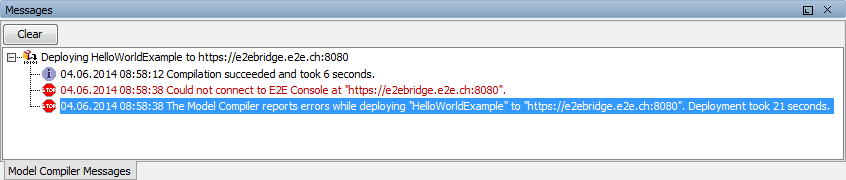
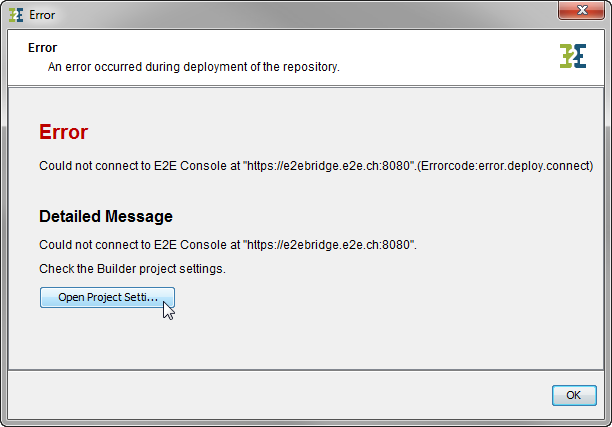
If the service E2E Console is not started on the machine, on which the deploying Bridge is installed, you will get an error when deploying xUML services with the Builder for MagicDraw. In the following screenshot of the Model Compiler, the error message is displayed in red color.
Solution
Select Details from the context menu of the error message in the Model Compiler window.
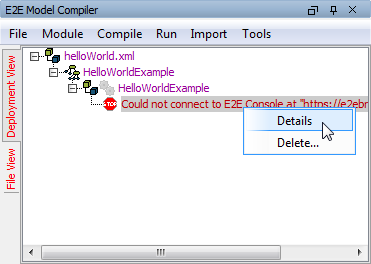
Check the Builder project settings by clicking Open Project Settings.
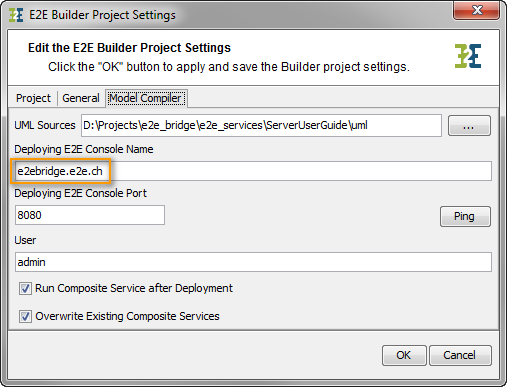
Switch to tab Model Compiler.
If the settings are correct, check the service E2E Console as explained above. In the example on the right, you would have to check the service on host e2ebridge.e2e.ch.